How to Include Zoom, Google Meet, or Microsoft Teams Links in Your Booking Workflow


A client books a call for Thursday afternoon. The time is confirmed, but there is one thing left to do: send them the meeting link. If you have to open Zoom, create a meeting, copy the link, and send another email every time someone books, the booking process still needs manual work.
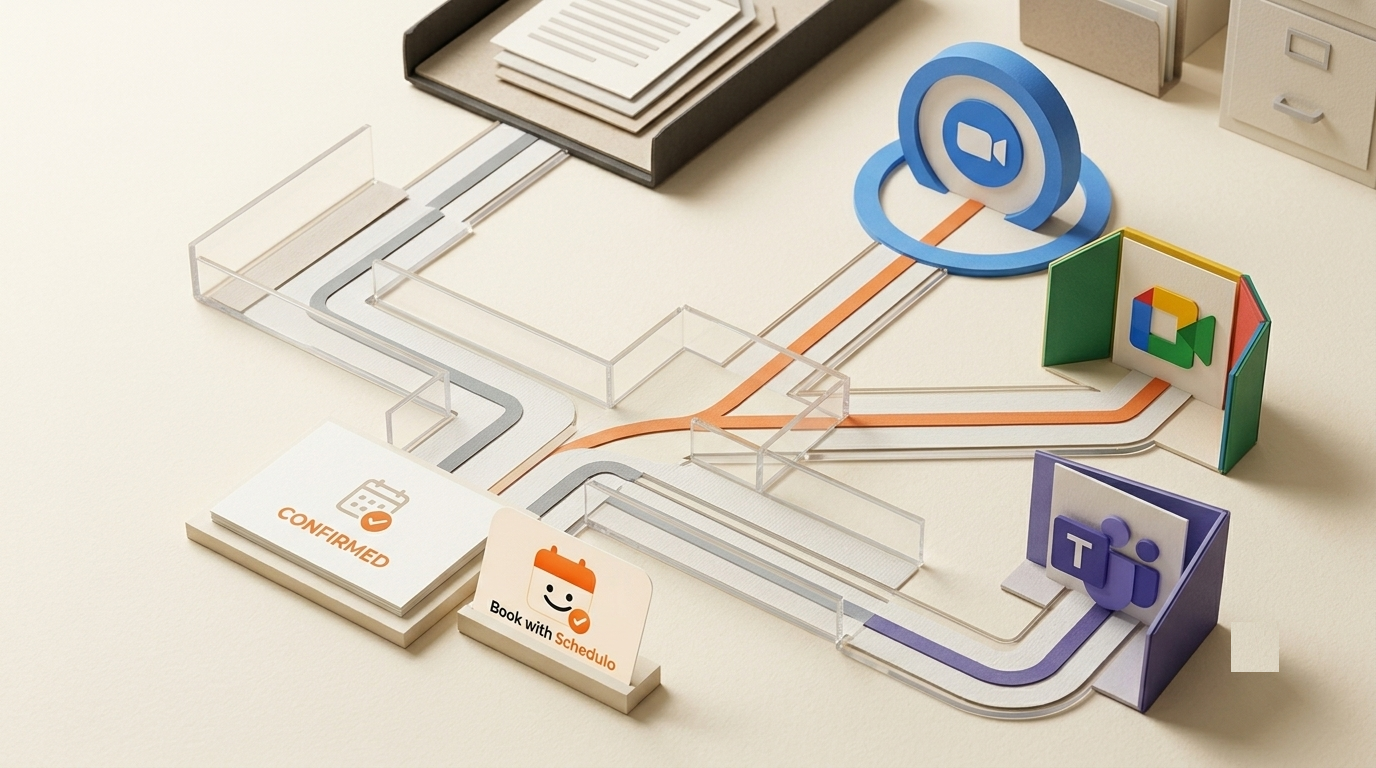
A booking page with Zoom, Google Meet, or Microsoft Teams can remove that extra step. Book with Schedulo connects your booking workflow to the meeting tools you already use. The setup is slightly different for each platform, though, so it helps to know where the meeting link comes from and where your guest will find it.
Which video meeting integration should you use?
Start with the platform you already use for client calls. You do not need to move every meeting to the same service. You can use different meeting platforms for different booking types, depending on the workflow you want to offer.
| Meeting platform | What you connect | Where the guest gets the link |
|---|---|---|
| Zoom | Your Zoom account | Confirmation and reminder emails; WhatsApp messages when enabled |
| Google Meet | Google Calendar | The calendar invitation for the booking |
| Microsoft Teams | Outlook or Microsoft 365 Calendar | The calendar invitation for the booking |
The main difference is how the meeting is created. Zoom connects directly through its integration. Google Meet is generated through Google Calendar, while Teams meeting links are generated through the Microsoft calendar connection.
How to add Zoom links to your booking workflow
If most of your client calls take place on Zoom, connect Zoom to Book with Schedulo first.
- Open the Integrations section in your Book with Schedulo dashboard.
- Find Zoom and select Connect.
- Sign in to your Zoom account and authorise access.
- Open the appointment type you want to offer and configure it for an online meeting.
- Save your settings before sharing the booking page.
Once the connection is in place, each confirmed online booking can generate its own Zoom meeting link. The link is included in the guest's confirmation and reminder emails, so you do not have to create a separate Zoom meeting manually for every appointment.
That is useful when you have several types of calls. For example, a consultant might offer a short introductory call and a longer strategy session. Each booking can follow its own schedule while the meeting link is generated as part of the booking process.
Setup details are available on the Zoom integration page.
How to create Google Meet links automatically
Google Meet works through the Google Calendar connection. If your calendar is already where you manage client meetings and availability, this is usually the most straightforward route.
- Go to Integrations in your Book with Schedulo dashboard.
- Select Google Calendar and connect the Google account you use for work or client meetings.
- Authorise the requested calendar permissions.
- Configure the relevant appointment type as an online meeting.
- Save the appointment settings and test the booking process.
For appointment types configured for online meetings, Book with Schedulo generates a unique Google Meet link for each booking and attaches it to the calendar invitation. Confirmed bookings are also written back to Google Calendar, while existing calendar events help block unavailable times on your booking page.
This matters if you sometimes accept meetings directly in Google Calendar as well as through your booking page. You do not want a new client booking to overlap with a call that was already on your calendar.
See the Google Calendar integration guide for connection details.
How to include Microsoft Teams meeting links
For businesses that use Outlook or Microsoft 365, Teams meeting links are created through the Microsoft calendar integration. You do not have to arrange a separate Teams meeting for each online booking.
- Open Integrations in your Book with Schedulo dashboard.
- Select Microsoft Calendar.
- Sign in with the Microsoft account you want to connect.
- Approve the requested calendar permissions.
- Configure the relevant appointment type for an online meeting and save the changes.
For online appointment types, a unique Microsoft Teams meeting link is generated for each booking and attached to the calendar invitation. Existing busy times in Outlook or Microsoft 365 are also taken into account when checking availability.
If you are connecting a company or school account, your organisation's Microsoft 365 administrator may need to approve access. If the connection cannot be completed with your work account, check the organisation's consent settings before changing your booking setup.
You can read more on the Microsoft Calendar integration page.
What happens after a client books?
The meeting link is only one part of the experience. A guest also needs to know that the booking went through, when the meeting is scheduled, and where to join when the time arrives.
Before sharing your booking page widely, check the full process from the guest's side. Do not rely only on the fact that a booking appears in your own dashboard.
| What to check | Why it matters |
|---|---|
| Booking confirmation | The guest should receive confirmation that the appointment was booked. |
| Calendar invitation | For Google Meet and Teams, check that the invitation contains the correct meeting link. |
| Reminder message | For Zoom, confirm that the meeting link appears in the reminder email. |
| Meeting destination | Open the link yourself to make sure it leads to the intended meeting, not an old or shared link. |
| Time and time zone | Check that the appointment appears at the expected time for both the host and guest. |
Can you send the meeting link through WhatsApp?
Some clients are much more likely to notice a WhatsApp message than an email reminder. If that fits your audience, Book with Schedulo also supports WhatsApp booking confirmations and reminders through the official WhatsApp Business Platform.
When WhatsApp is enabled and the guest opts in, the reminder can include a Join Meeting button that opens the actual Zoom, Google Meet, or Microsoft Teams link for that appointment. This gives the guest a direct way to join without searching through older emails.
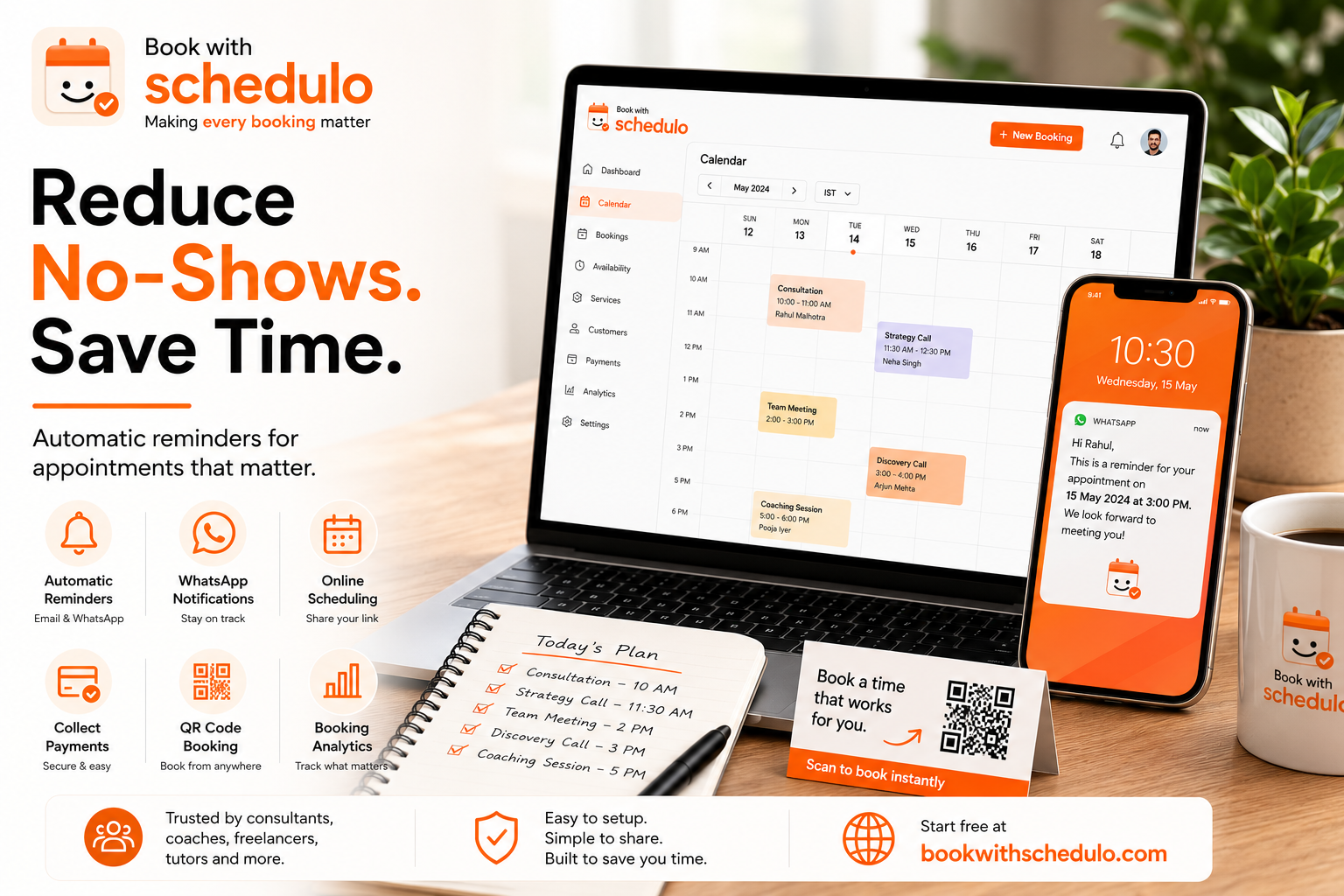
WhatsApp reminders are optional, so check that they are enabled in your dashboard and that your guests have opted in. The setup instructions are on the WhatsApp integration page.
You can also read how to reduce appointment no-shows for more ways to make it easier for clients to remember their meetings.
Test the booking before sharing it with clients
It is worth making one test booking before adding the booking link to your website, email signature, or messages to clients. Use an email address you can access as a guest, then follow the same steps a real customer would.
- Open the public booking page and choose an available time.
- Complete the booking with a test email address.
- Check the confirmation message and calendar invitation.
- Open the meeting link to verify that it works.
- Check that the appointment also appears on the host's connected calendar.
- For Zoom, check the reminder email as well. If you use WhatsApp reminders, test that flow with an opted-in guest.
If a link is missing, first check that the correct account is connected and that the appointment type is configured as an online meeting. For Google Meet and Teams, check the calendar invitation. For a Microsoft work account, also check whether administrator approval is required.
Keep booking and meeting setup in one workflow
Clients should not need to wait for a separate email just to find out how to join a meeting. Connecting your booking workflow to the video platform you already use helps take that manual step out of the process.
With Book with Schedulo, you can share an online booking page, let clients choose from your available times, and connect the relevant meeting service so links are generated for confirmed online appointments. Choose Zoom, Google Meet, or Microsoft Teams based on how you work, test the guest experience once, and then share the booking page with your clients.
Explore Book with Schedulo or review the guide to adding online appointment booking to your website if you are setting up your booking page for the first time.