How to Add an Appointment Booking Button to a WordPress Website


How to Add an Appointment Booking Button to a WordPress Website
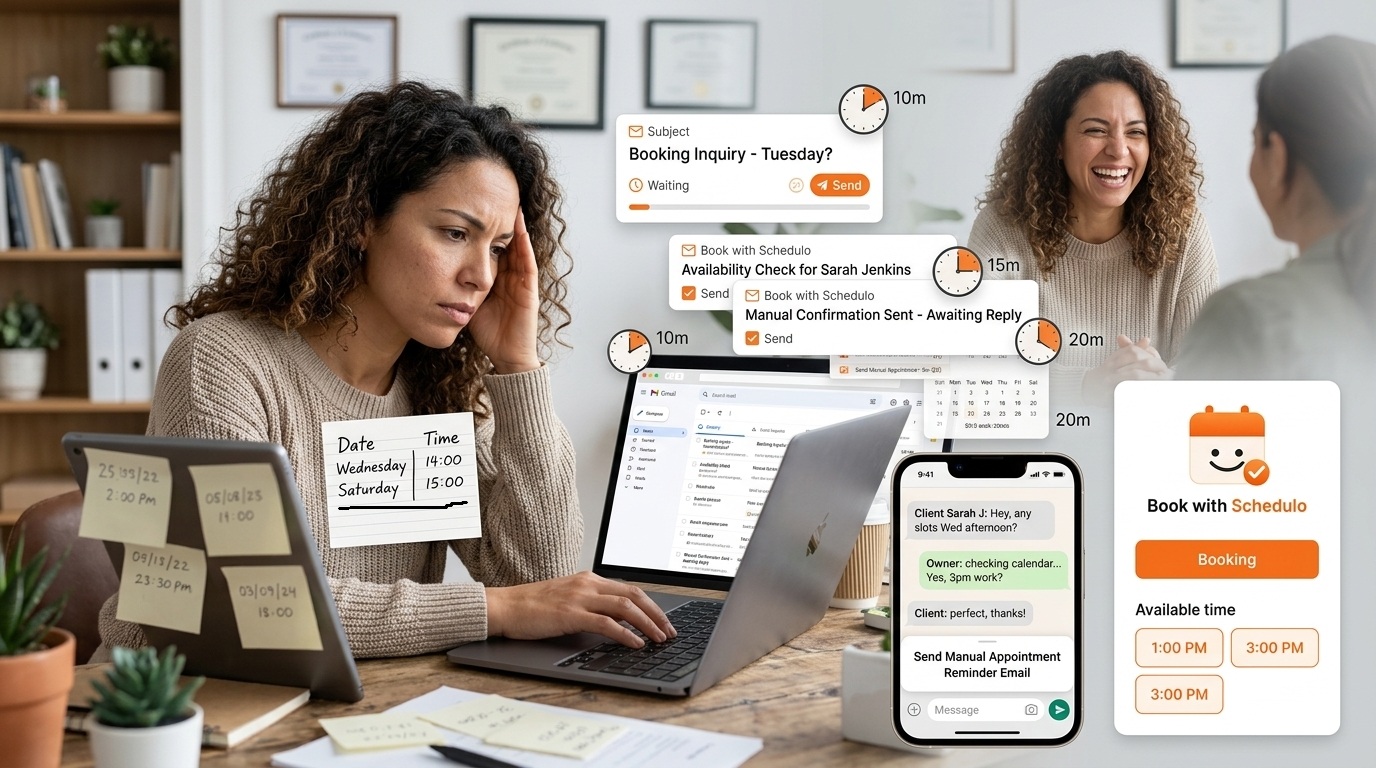
There is a big difference between having a phone number on a website and giving someone a way to book.
A visitor might already know what they want. They have read your service page, looked at the price and decided they would like to talk to you. Sending them to a contact form at that point means the booking still depends on another message and another reply.
A button can remove that extra step.
Something as simple as Book a Consultation can take the visitor from the page they are reading to your available appointment times.
That does not mean every WordPress page needs a calendar sitting in the middle of it. Often, a button is all you need.
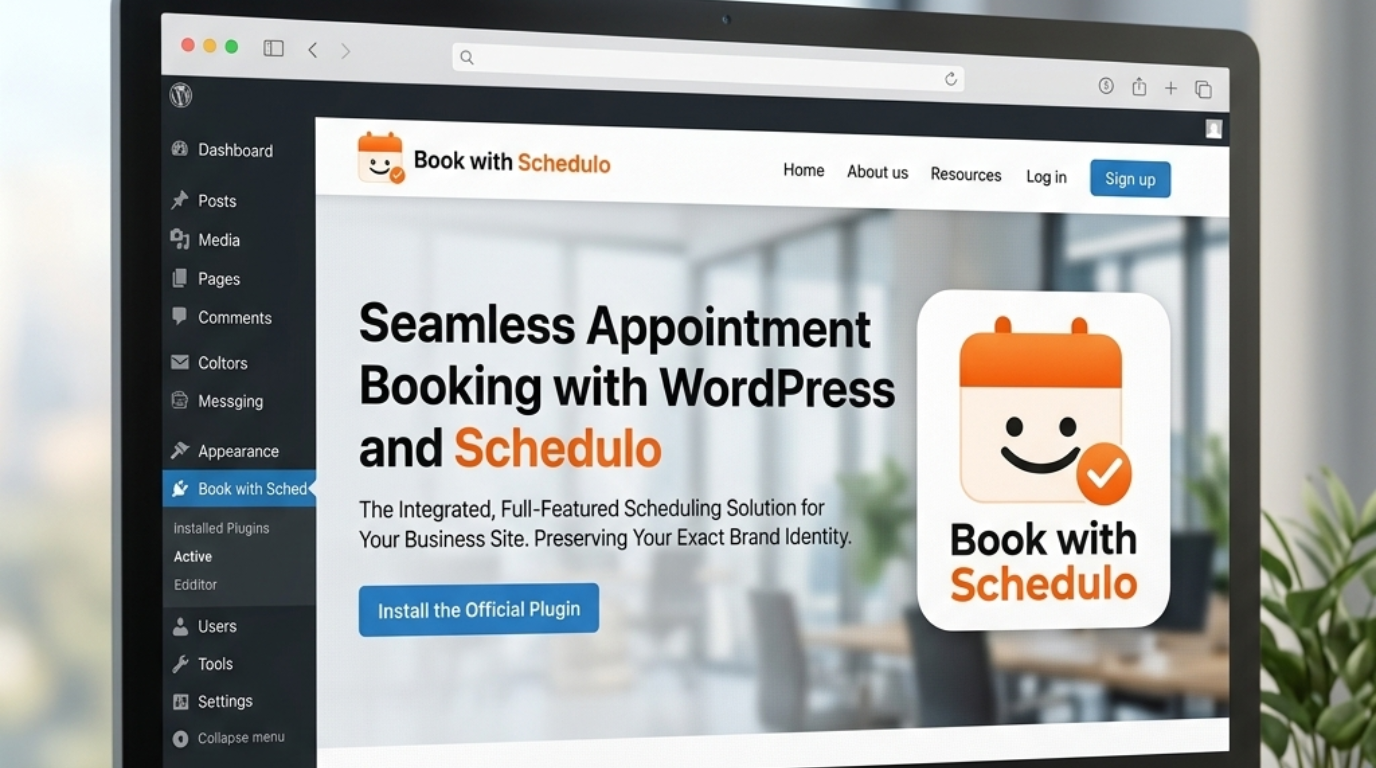
Book with Schedulo has a WordPress plugin for this. You can add a booking page to a WordPress post or page, show the calendar directly in the content, open it from a popup button, or use a floating booking button. The plugin works with the WordPress block editor as well as shortcodes.
Start with the appointment, not the button
Before opening WordPress, get the booking side ready.
Suppose you are a consultant.
You might have a 30-minute consultation, a longer strategy session and a free introductory call. Those are different reasons for someone to book, so sending all three people to an undefined “Book Now” page may not be the best experience.
Create the appointment you actually want people to schedule in Book with Schedulo.
Give it a name a customer would understand.
“30-Minute Consultation” is clear.
“Strategy Call” might also be clear if that is how you normally describe it.
There is no need to make the name sound technical just because it is being used inside scheduling software.
Then check the availability for that appointment. Your booking button is going to be visible to real people, so the times behind it need to be ready before you put it on a public page.
This is also a good point to decide whether you need one booking type or several.
One service usually does not need three different buttons.
Several services probably should not all lead to exactly the same appointment.
Decide what should happen when the button is clicked
There are two sensible ways to handle this.
The first is the simple route: the button sends the visitor to your Schedulo booking page.
That works well when you want the scheduling process on a dedicated page.
The second is to keep the visitor on the WordPress page and open the booking experience in a popup.
That can be handy on a service page. Someone reads about the service, decides to book and clicks the button. They do not have to leave the page they were just reading.
There is also an inline option, where the booking calendar sits directly inside the page, and a floating option when you want a booking button to stay visible while someone moves around the page.
For this article, the popup button is the most relevant one. It is still a button, rather than turning the entire page into a scheduling screen.
Install the Schedulo plugin in WordPress
Now move over to your WordPress dashboard.
Go to:
Plugins → Add New
Search for Book with Schedulo.
Install the plugin and activate it.
The plugin is available through the WordPress plugin directory and its current installation flow is deliberately simple: install it, find your Schedulo username, connect the account and then add the block or shortcode to the page.
You will need a Book with Schedulo account to use the plugin.
Connect your booking account
Once the plugin is active, open Settings → Schedulo in WordPress.
The current plugin has three ways to connect the account. The newest version includes a one-click OAuth connection, which is the recommended option. You can also connect using your public booking username or use an API key as an advanced option.
For a basic booking button, the username is enough.
That is worth pointing out because you do not need to create API credentials simply to put a booking page on your website.
Your Schedulo booking link will look something like:
bookwithschedulo.com/book/acme-studio
In that example, acme-studio is the username.
You can enter that username in the plugin settings. The plugin also allows you to paste the complete booking URL and extracts the username for you. After saving it, a live preview lets you check that the booking page is loading before you put it onto an actual website page.
That preview is useful.
It is better to find out that you entered the wrong username while looking at the settings screen than after publishing the page.
Add the booking button to a WordPress page
Now open the page where the button should appear.
With Gutenberg, click the + icon and search for Book with Schedulo.
Add the Schedulo block.
The block gives you the options for how the booking experience should appear. For a button-focused setup, choose the popup mode.
You can then use a label that matches the page.
For a consulting page:
Book a Consultation
For a coaching page:
Book a Coaching Session
For a general appointment page:
Book an Appointment
The point is not to make the button interesting.
The point is to make it obvious.
Someone should be able to look at it and know what will happen when they click.
Using a shortcode instead
Not every WordPress website is built entirely with Gutenberg.
You may be using the classic editor, a page builder or a widget area that accepts shortcodes.
The Schedulo plugin supports those situations too.
For a basic embed, the shortcode is:
[schedulo username="your-username"]For a popup booking button:
[schedulo username="your-username" mode="popup" text="Book a Consultation"]You can also specify an event type when you want the embed to open a particular appointment rather than the general booking page.
For example:
[schedulo username="your-username" event="your-event-slug" mode="popup" text="Book a Consultation"]The exact event slug comes from the booking type you want to use.
There is no reason to choose the shortcode route if the Gutenberg block is easier for your site. They are simply two ways of placing the same booking experience where you need it.
Where should the button go?
This is probably more important than the installation itself.
A booking button works best when the visitor already has enough information to make a decision.
Take a service page.
Someone arrives because they want to know what the service includes. They read the description. They may look at pricing. They decide they want to talk.
That is a good place for a button.
The same button might not make much sense halfway through your About page.
The homepage
A homepage can have a booking button when appointments are one of the main actions you want visitors to take.
You might have a simple Book Now button near the main call to action.
There is no need to put a full calendar there unless scheduling itself is the main purpose of the page.
Service pages
This is where I would start.
The button can sit after the section explaining the service, or next to the relevant call to action.
If the page is about a 60-minute consultation, the visitor should be able to book that consultation without going back to a generic booking page and working out which option applies to them.
The contact page
A contact page is another obvious place.
Not every person who visits it is ready to schedule, so a booking button does not have to replace the contact form.
You can have both.
Someone with a question can use the form.
Someone who already knows they want an appointment can choose a time instead.
The navigation
A Book Now link in the main navigation can make sense for appointment-based businesses.
It is particularly useful when visitors arrive at different parts of the website and you do not want them hunting around for the booking option.
Keep the wording general here. Your service pages can still have more specific buttons.
The pricing page
Someone comparing prices is often close to making a decision.
A booking button immediately after the relevant service or package information gives them somewhere to go next.
It is a small change, but it avoids sending a person who is ready to act back to the homepage.
What should the button say?
I would not spend too much time trying to invent a clever CTA.
Use the words your customers already understand.
Book an Appointment
Book a Consultation
Schedule a Call
Book a Session
Choose a Time
Book Now
The right phrase depends on the page.
A consultant selling a discovery call has little reason to label the button “Get Started” when Book a Discovery Call tells the visitor exactly what is going to happen.
That clarity is more useful than clever copy.
Popup or full calendar?
This depends on the job of the page.
A service page is often better with a button.
The visitor reads first and books second.
A dedicated /book page might be better with an inline calendar because the visitor is already there specifically to schedule.
A floating button is another option when booking is important enough that you want it available across the page.
There is no need to use all three.
Pick the one that matches how your website is used.
And be careful with floating buttons on mobile. Many websites already have chat buttons, WhatsApp controls or other elements attached to the bottom of the screen. Adding another one can make the page feel crowded.
One booking button does not have to serve the whole website
This is where event-specific booking becomes useful.
Imagine you have three pages:
Consulting
Recruitment Services
Training
Each page can have its own call to action.
The consulting page can open the consulting appointment.
The recruitment page can open the recruitment consultation.
The training page can open the appropriate session.
The visitor does not need to understand how your scheduling setup is organised behind the scenes.
They simply click the button on the page they are interested in.
The Schedulo plugin supports an event-type attribute for embedding a specific event, and the current block can also retrieve event types when the optional API connection is used.
You don't actually have to use the plugin
This is important because adding a plugin is not the goal.
The goal is to let people book.
You can also use an ordinary WordPress button and make it link directly to your Schedulo booking page.
That might be all you need.
For example, suppose your website already has a carefully designed button system and you want to send visitors to a dedicated booking page. There is no real benefit in adding a popup simply because a popup is available.
Use the plugin when its WordPress-specific options solve a problem for you.
Use a normal link when that is simpler.
There is no rule saying every WordPress website needs an embedded calendar.
Test the button from the outside
Once the page looks right in WordPress, stop looking at the editor.
Open the published page.
Click the button.
Check which booking page appears.
Check the appointment name.
Check the available times.
Go through the booking process.
Then open the page from your phone and do the same thing.
This catches a different set of problems.
The button might be easy to see on a large monitor but awkward on a narrow screen.
A popup might open correctly on desktop but leave a visitor struggling to close it on mobile.
A page-specific button might accidentally be pointing to your general booking page.
Those are easy things to catch before the page starts receiving real visitors.
The plugin's own settings page includes a live preview specifically so you can confirm that the booking embed is working before publishing.
Do the customer test as well.
That's the part that matters.
Don't put the button on every page just because you can
Once something works, it is tempting to add it everywhere.
I would resist that.
A blog post doesn't automatically need a large booking button.
Your About page may not need one.
A help article definitely does not need to interrupt every reader with a scheduling popup.
Look at intent instead.
Where does the visitor move from “I'm learning about this” to “I'd like to talk”?
That's where the booking button earns its place.
For most businesses, that means starting with one or two service pages and the contact page.
You can add more later.
What about the rest of the booking process?
The button is only the doorway.
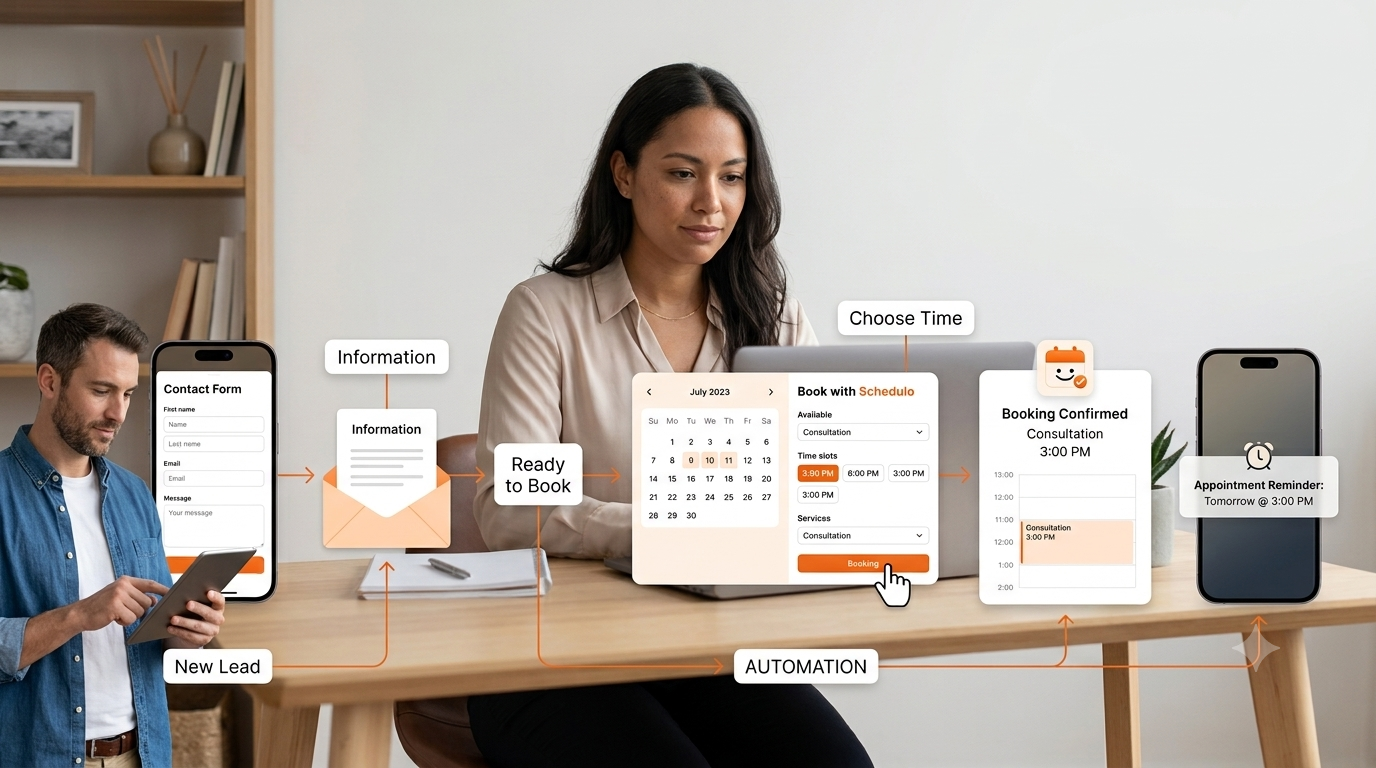
Once the visitor reaches the Schedulo booking page, the booking process can handle the rest.
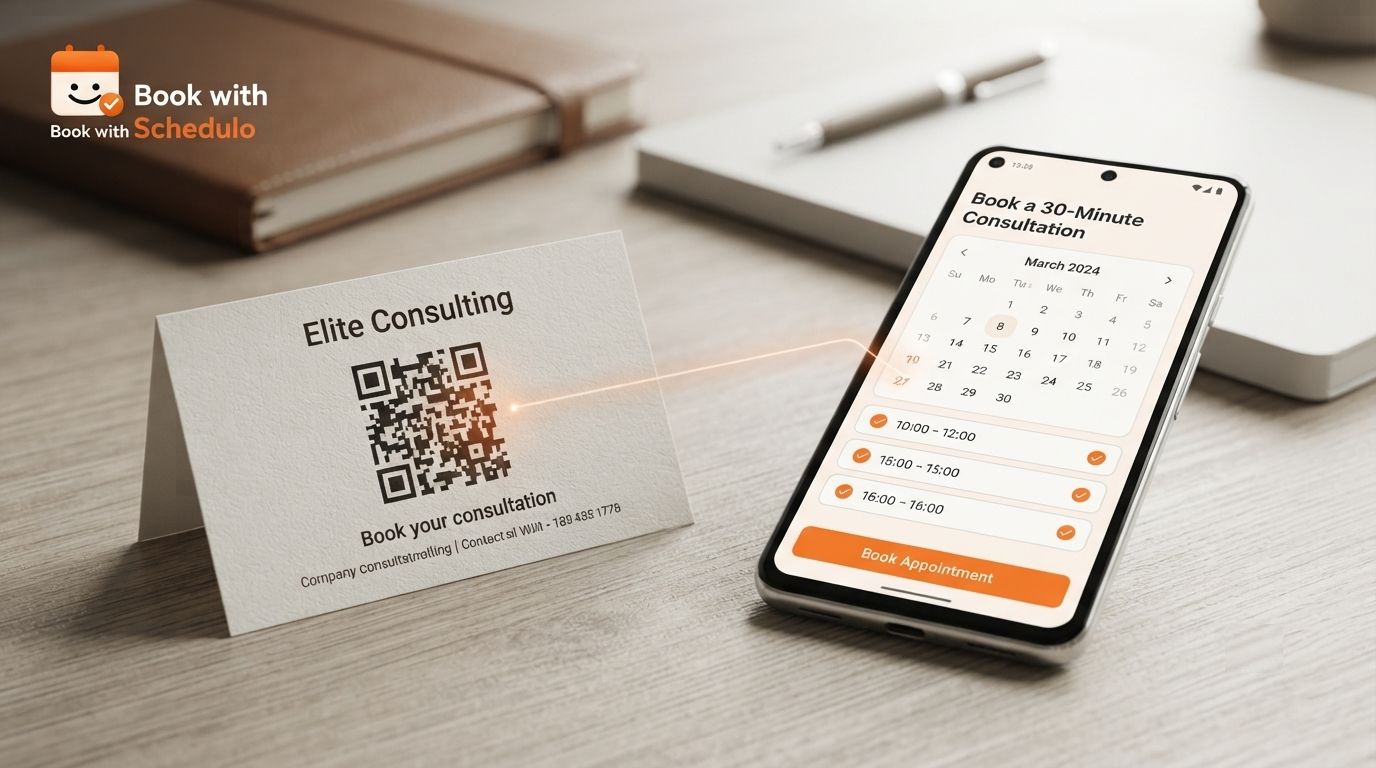
Customers see the available times and choose one. Book with Schedulo can then handle the booking confirmation and reminders, rather than leaving the host to manually confirm every appointment. The wider product also supports shareable booking links and QR codes for individual booking types. You can read more about the QR code appointment booking use case separately.
That same booking link does not have to stay on the WordPress site.
You can share it through email, proposals or messages.
For businesses that meet customers face to face, you can also use the booking type's QR code on printed material and let someone scan straight into the relevant booking page.
This is useful because your WordPress website is just one entry point.
The booking page can travel with you.
A simple way to approach the setup
You do not need to rebuild a WordPress website around appointments.
Start with the service that gets the most enquiries.
Create or check the matching booking type in Schedulo.
Install the WordPress plugin.
Connect your account.
Add a button to the relevant page.
Use a clear label.
Test it on desktop and mobile.
Then leave the rest of the website alone for the moment.
If that first page works well, add another.
Maybe later you decide that the navigation should have a general Book Now option. Maybe a pricing page deserves its own button. Maybe a dedicated booking page makes sense for visitors who arrive specifically looking to schedule.
Those decisions can come later.
There is no reason to make the first implementation complicated.
The useful part is what happens after the click
A booking button is a small element on a WordPress page.
It might only take up a few lines of space.
But it changes what the visitor can do.
Before it, the website can explain the service and tell people how to contact you.
After it, someone who has already decided to book can actually choose a time.
That is the real reason to add an appointment booking button to WordPress.
Not because a website looks better with another button.
Not because every business needs a popup.
And not because WordPress needs another plugin.
It is simply a shorter path between someone saying, “I'd like to book this,” and the appointment actually appearing on your calendar.
For the broader guide, see how to add online appointment booking to a website.