How Private Tutors Can Let Parents Book Lessons Online Without the WhatsApp Back-and-Forth


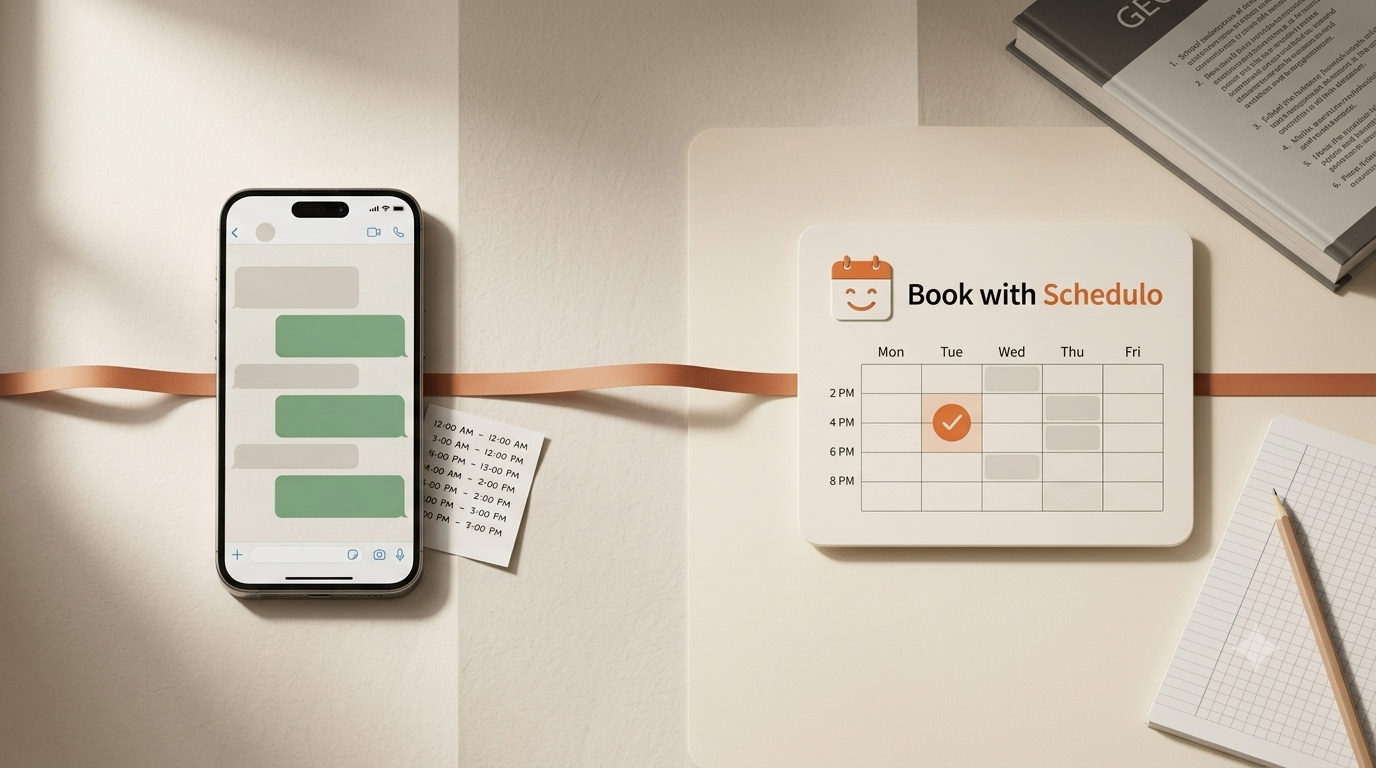
“Are you available for a maths lesson on Saturday?”
You reply with a time. The parent asks whether Sunday morning is possible instead. You check your calendar, suggest another slot, and then wait for confirmation. A few hours later, someone else messages asking about a lesson for their child.
For a private tutor with a handful of students, this may seem manageable. But the messages keep coming, and arranging lessons starts taking time away from the actual teaching.
Tutor booking software gives parents another way to arrange lessons. Instead of asking you to confirm every available time, they open your booking page, choose a slot that works, and receive the booking confirmation. You still decide when lessons can happen. You just don't have to negotiate every appointment through WhatsApp.
Why lesson scheduling gets difficult as a tutor
The problem usually isn't one difficult booking. It is all the small conversations around it.
A parent wants to move a Tuesday lesson to Thursday. Another wants a longer session before an exam. Someone forgets which time you agreed on, so you search through an old WhatsApp conversation to find the message.
There is also the calendar problem. You might already have a lesson, a personal appointment, or time set aside to prepare materials. Offering a slot before checking everything can leave you with two commitments at the same time.
An online booking page helps by showing the times you have made available. Parents choose from those slots rather than asking you to suggest a new set of times for every lesson.
Let parents choose a lesson time themselves
Start with the lesson you teach most often. For example, if you tutor school students in mathematics, create a booking type called “Mathematics Lesson” and give it a clear description.
Set the duration you normally need and the hours during which you accept bookings. You may want to offer lessons only in the late afternoon on weekdays and a few morning slots on Saturday. There is no reason to expose your entire calendar if those aren't times you want to teach.
Once your booking page is ready, share its link with parents. They can open it on their phone, view the available dates and times, and select a suitable slot. They don't need to install an app or create a Book with Schedulo account to book.
After the booking is completed, the confirmation gives both sides a record of the appointment. That is more reliable than relying on a message sent several days earlier in a busy chat.
What if you offer different lesson lengths?
Not every lesson needs the same amount of time. A regular weekly session might be 45 minutes, while exam revision or a topic the student is struggling with could need an hour.
You can create different booking types for those arrangements, with their own durations and availability. For example, a tutor might offer:
- Regular lesson: a standard session for ongoing teaching.
- Extended revision lesson: a longer slot for exam preparation or difficult topics.
- Introductory session: a shorter first meeting with a new student and parent.
The names should make it obvious which option a parent needs. They shouldn't have to message you just to understand the difference between two booking links.
Keep your plan's booking-type allowance in mind when setting this up. Book with Schedulo's free plan includes one booking type, so tutors who need separate booking types for different lesson lengths may need a plan that supports additional types. You can start with your most common lesson and add more options when your workflow requires them.
Share the booking link on WhatsApp instead of discussing every slot
You probably don't need to stop using WhatsApp. Parents may already contact you there, and it can remain the easiest place to share information. The change is that you send a booking link instead of manually arranging the appointment in the conversation.
For example, when a parent asks about next week's lesson, you can send your booking link with a short message explaining that they can choose any available time shown on the page.
Once they book, you no longer need to send a separate message asking them to confirm which suggested slot they prefer. The booking is recorded in the system, and the confirmation gives them the appointment details.
You can also keep the link in a pinned WhatsApp message or a saved reply. When a new parent enquires, you can share the same link rather than typing your available hours from scratch each time.
One important difference: WhatsApp is where you share the link, not where the parent selects the available slot. The actual booking takes place on your online booking page.
Keep your own calendar up to date
A booking page is only useful if the availability it shows is accurate. Before sharing it with parents, connect the calendar you already use, if supported, and check that existing busy periods are being respected.
Then set your working hours and leave enough space between lessons for breaks or preparation. If you teach several students in a row, a short buffer can be useful for writing notes or getting the next lesson ready.
Book with Schedulo supports calendar synchronisation with connected calendars, including Google Calendar and Microsoft/Outlook. New bookings can appear on your connected calendar, while existing busy times help prevent unsuitable slots from being offered.
You should still review your availability whenever your teaching schedule changes. If you have decided not to teach on a particular Saturday, update your available times before parents try to book that date.
Reduce the messages sent after a lesson is booked
Getting the booking made is one part of the job. You also want the parent to remember the appointment.
Book with Schedulo sends booking confirmation emails and automatic reminders. WhatsApp reminders are also available when the feature is enabled and the parent opts in. This can be useful for lessons scheduled several days in advance, when it is easy for a family to forget the original arrangement.
Reminders won't prevent every missed lesson. A student may still be ill or a family may have an unexpected commitment. But they can reduce the need for you to message each parent individually just to remind them about tomorrow's class.
If you want to read more about reminders and missed appointments, see our guide on how to reduce appointment no-shows.
What to set up before sharing your booking page
You don't need to configure every possible option before accepting your first online booking. Get the basic lesson workflow working first.
- Create your booking page. Use the name of the lesson or subject parents are booking.
- Set a realistic duration. Start with the session length you teach most often.
- Choose your available hours. Only show times when you are genuinely available to teach.
- Connect your calendar. Check that existing commitments are taken into account.
- Test a booking. Open your public link, book a test slot, and check the confirmation and calendar entry.
- Share the link. Send it to parents on WhatsApp or wherever you normally handle lesson enquiries.
For the first few bookings, pay attention to the questions parents still ask. If several parents are confused about which lesson to choose, improve the booking type name or description. If they keep asking whether a slot is confirmed, check that the confirmation message is arriving correctly.
Start with one lesson booking page
Private tutors do not need a complicated administration system just to schedule lessons. If you teach independently, the main goal is straightforward: parents should be able to find an available time and book it without waiting for you to reply to a message.
With Book with Schedulo, you can set your availability, share a booking link, and let parents choose from the available slots. Automatic confirmations and reminders help keep the appointment details visible after the booking is made.
Start with the lesson type you teach most often. Share the link with a parent who is arranging the next class and see whether the process is easier than the usual message exchange. Once that works, decide whether you need separate booking types for longer lessons or other teaching arrangements.
Create your free Book with Schedulo account and set up your first booking page. The aim isn't to move every conversation away from WhatsApp; it's to stop using conversations to do a job that a booking page can handle.
Frequently Asked Questions
How can private tutors let parents book lessons online?
Can parents book lessons without creating an account?
Can tutors offer different lesson durations?
Do parents receive confirmation and reminders after booking a lesson?
Related articles