3 Appointment Booking Automations You Can Build With Zapier: New Booking, Cancellation, and Reschedule


A booking is useful information, but it should not stop at the booking dashboard. Someone books a consultation, and you may still have to add it to a tracking sheet, tell your team, or update another system. When a client cancels or changes the time, those records need attention too.
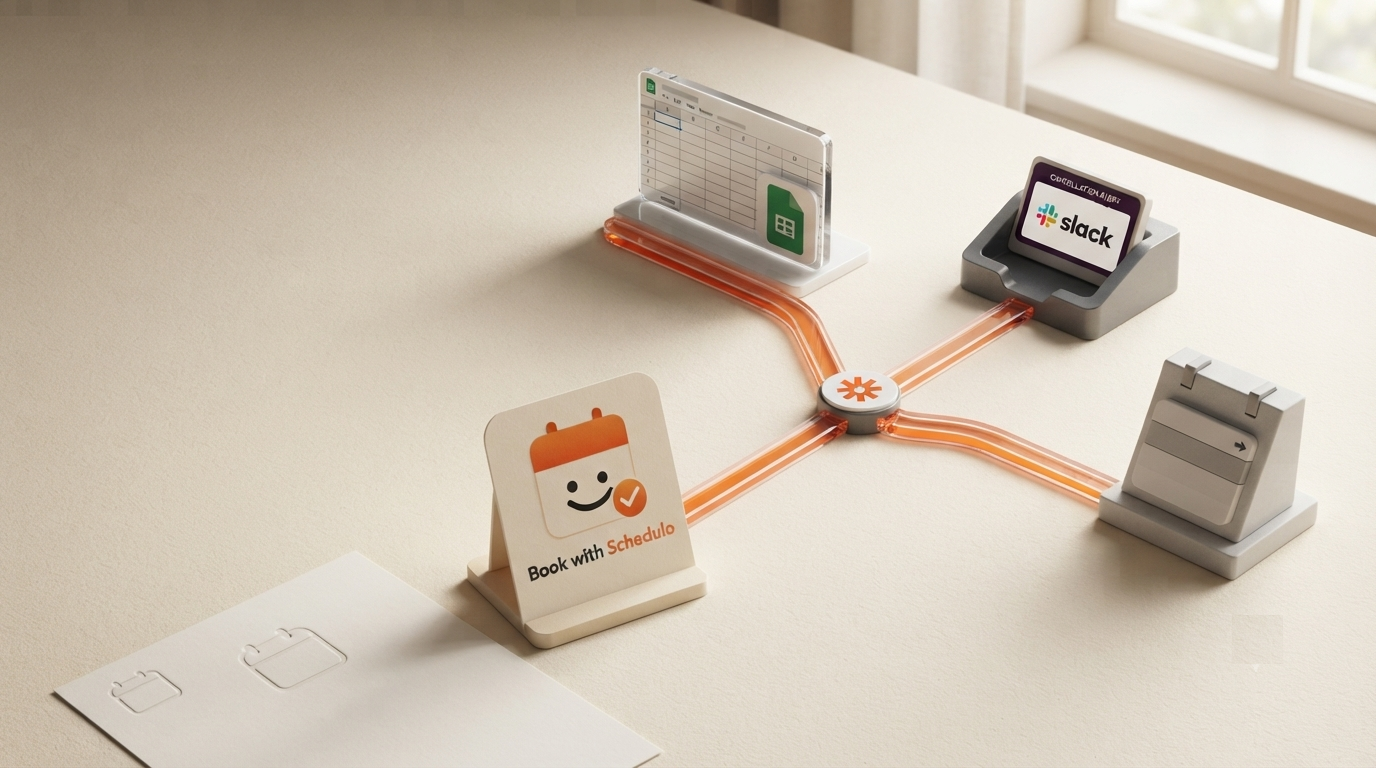
That is where booking software that integrates with Zapier can help. Book with Schedulo has Zapier triggers for new bookings, cancellations, and reschedules. You can use those events to start workflows in other apps, without building a custom integration for every tool your business uses.
Here are three useful automations to start with: recording new bookings in Google Sheets, notifying your team when an appointment is cancelled, and updating your records when a client reschedules.
How the Book with Schedulo and Zapier integration works
A Zap has a trigger and one or more actions. The trigger is the event that starts the workflow. The action is what you want another app to do because that event occurred.
For example, a new booking can trigger a new row in Google Sheets. A cancellation can trigger a message in Slack. A reschedule can trigger an update to an existing record rather than creating a second entry for the same appointment.
Book with Schedulo provides these booking-event triggers:
- New Booking: starts a workflow when a guest books a new meeting.
- Booking Cancelled: starts a workflow when a booking is cancelled.
- Booking Rescheduled: starts a workflow when a guest reschedules a booking.
These are separate triggers, so you can build a different Zap for each event. The action depends on what you want to happen next and which apps you use.
Before building your first Zap
First, connect your Book with Schedulo account to Zapier.
- Open the Integrations section in your Book with Schedulo dashboard.
- Find the Zapier integration and retrieve the API key provided for the connection.
- Open the Book with Schedulo app directory on Zapier.
- Create a Zap, choose Book with Schedulo as the trigger app, and select the event you want to use.
- Connect your account using the requested credentials, then test the trigger with a sample booking event.
- Choose the destination app and configure its action.
Use the sample data shown by Zapier when mapping fields. Available fields can vary by trigger and connection, so check the actual test output instead of assuming every booking detail will be present. Treat your API key like a password and do not include it in spreadsheet rows or team notifications.
1. Log every new booking in Google Sheets
This is a good first automation if you keep a manual booking register. Perhaps you review consultations at the end of each week, track which appointment types are popular, or share a list of upcoming meetings with an assistant. Adding every booking by hand creates another task after the customer has already completed the important part.
The workflow
Trigger: Book with Schedulo — New Booking
Action: Google Sheets — Create Spreadsheet Row
When a guest books a meeting, Zapier adds a new row to your chosen spreadsheet. You do not need to open the sheet and copy the details across each time.
Set up the spreadsheet
Create a sheet called something like “Bookings Register”. Use a separate column for each piece of information you actually need to track. A simple starting layout is:
| Column | Purpose |
|---|---|
| Booking reference | Helps identify the appointment later, if a stable identifier is available. |
| Guest name | Shows who made the booking. |
| Appointment type | Shows which meeting or service was booked. |
| Scheduled date and time | Helps the team review upcoming appointments. |
| Guest email | Helps match the record when follow-up is required. |
| Status | Can be set to “Booked” when the row is first created. |
In Zapier, select the spreadsheet and worksheet. Map each column to the corresponding field in the New Booking sample output. If you have a column for booking reference, map it only if that identifier is available in the trigger data.
Test the Zap by making a test booking and checking the new row. Check the date and time carefully; a value that looks correct in Zapier can still be awkward to read in a spreadsheet if the column format is wrong.
One practical point: this workflow records new bookings. It does not automatically keep the row updated when an appointment is cancelled or rescheduled. Those changes need their own workflows, which are covered below.
2. Notify your team when a booking is cancelled
A cancellation is easy to miss when the person responsible for the appointment is not watching the booking dashboard. This can lead to someone preparing for a meeting that is no longer happening, or an internal tracker continuing to show an appointment that has been cancelled.
The workflow
Trigger: Book with Schedulo — Booking Cancelled
Action: Slack — Send Channel Message
Choose an internal Slack channel where relevant booking updates belong. When a booking is cancelled, Zapier sends a message to that channel so the team can adjust its plans.
Decide what the message should contain
Keep the notification useful without turning it into a dump of customer information. For example, the message could follow this format, using the matching fields available in your Zap:
Booking cancelled
Guest: [Guest name]
Appointment: [Appointment type]
Original time: [Scheduled date and time]Please update any related internal tasks or records.
Map the values from the Booking Cancelled trigger rather than typing fixed details into the message. Only include the cancellation reason if it is provided in the trigger output and your team needs it.
Now test it. Cancel a test booking, then check whether the notification arrives in the intended channel and whether it identifies the correct appointment. If the message is missing a useful field, review the trigger's available data before building more steps around it.
This workflow is especially helpful for teams where reception, account managers, consultants, or operations staff share responsibility for appointments. The cancellation is recorded as an event, rather than relying on someone to remember to send a message.
3. Update your records when a guest reschedules
A rescheduled appointment is not quite the same as a new booking. The guest is changing an existing commitment. If your automation simply adds another row every time a time changes, your register could end up showing two appointments even though there is only one current booking.
The workflow
Trigger: Book with Schedulo — Booking Rescheduled
Actions: Find the matching record in your spreadsheet or tracking app, then update it with the new appointment details.
For a Google Sheets workflow, this usually means adding a lookup step before the update step. The lookup finds the row that belongs to the rescheduled appointment; the update then changes the relevant date, time, or status fields.
Match the existing booking first
The important part is how you identify the correct row. If the trigger output includes a stable booking identifier, use it as the lookup value and store the same value in your spreadsheet when the original booking is created.
If that identifier is not available, do not assume that the guest's name alone is enough. One person may book several meetings. Choose a reliable matching method based on the fields actually available, and test it against more than one booking from the same guest.
Once the matching row is found, map the updated appointment details from the reschedule event into the appropriate columns. Leave unrelated fields alone. For example, there is no reason to replace the guest's email address just because the appointment time has changed.
Before turning this Zap on, test at least these cases:
- A booking is rescheduled and the correct row receives the new time.
- A guest has more than one booking and the automation updates the right one.
- No matching row is found, so the workflow does not silently update the wrong appointment.
If the destination app cannot reliably locate the original record, consider sending an internal alert for manual review instead of automatically writing to a guessed row. A controlled exception is better than corrupting the booking register.
Do you need a separate Zap for each event?
For these examples, separate Zaps are easier to understand and test. One starts with New Booking, another starts with Booking Cancelled, and the third starts with Booking Rescheduled. Each has a different job and a different destination action.
You can add filters or extra actions later, but start with one clear result per workflow. For instance, log the new booking first. Once that works reliably, add the cancellation notification and then the reschedule update.
The Book with Schedulo app on Zapier also lists actions such as Create Booking and Cancel Booking. Those are useful for workflows where another app needs to create or cancel a booking in Book with Schedulo. The three examples in this guide work in the other direction: a booking event starts an action in another app.
Test all three automations before relying on them
Do not stop after Zapier says the test was successful. Check what happened in the destination app.
- New booking: make a test booking and confirm that one row is added with the correct details.
- Cancellation: cancel a test appointment and confirm that the expected message reaches the team channel.
- Reschedule: move a test appointment and check that the existing record is updated rather than duplicated.
- Run history: look at Zapier's task history if a step fails, and check which step needs attention before enabling the workflow again.
Also decide who will check failed runs. Automation reduces manual work, but a failed task can still leave a spreadsheet or team message out of date if no one notices it.
Connect Book with Schedulo to the rest of your workflow
You do not need to move every business process into one app. Your booking page can handle appointment selection, while Zapier passes booking events to the tools your team already uses.
Start with the task you currently do by hand most often. For some teams, that is copying new bookings into a register. For others, it is notifying staff about cancellations or correcting records after a reschedule. Build and test that workflow first, then add the others when you know the data is coming through correctly.
Visit the Book with Schedulo Zapier integration page to connect your account and see the available booking triggers.