How to Automatically Log Booked Meetings in HubSpot: Contacts, Deals, and Follow-Up


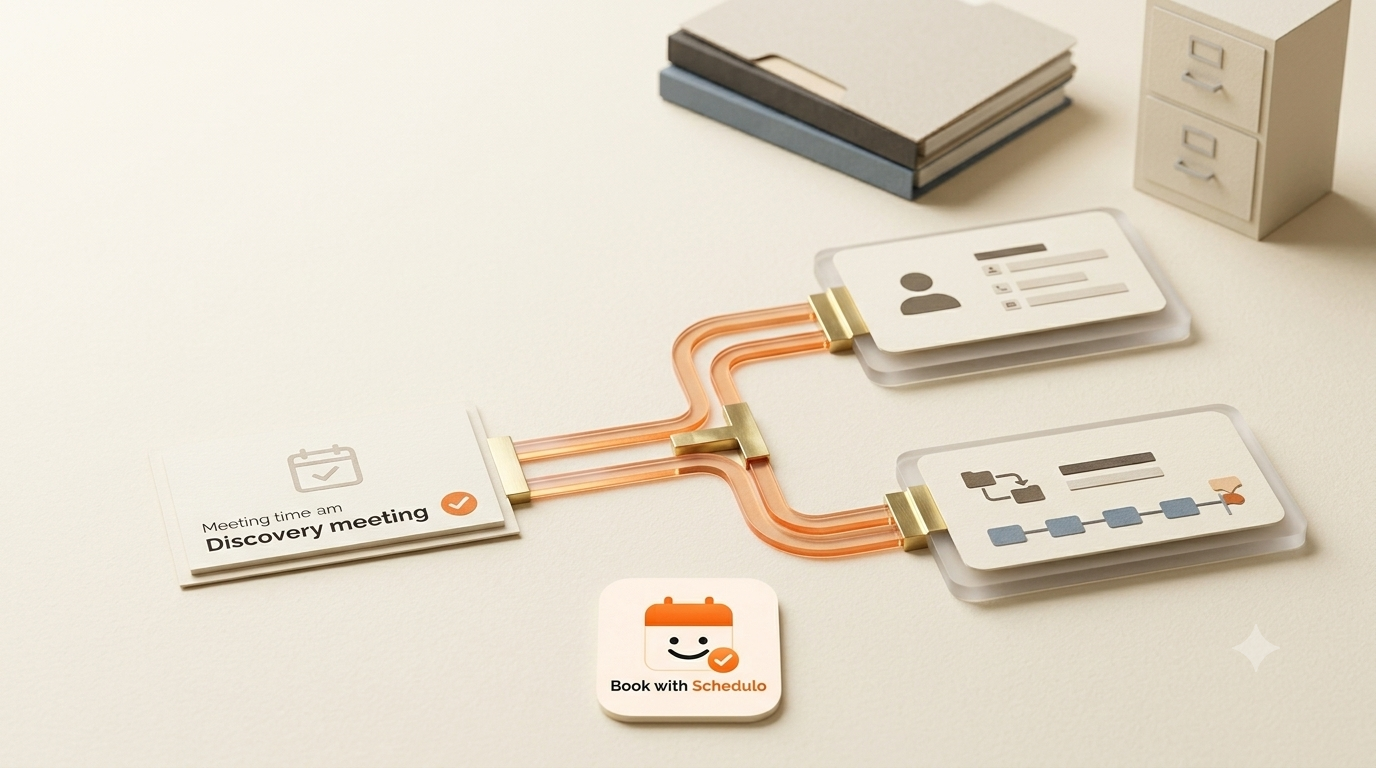
When someone books a meeting through Book with Schedulo, you want the details to reach your CRM without having to enter them manually. To log booked meetings in HubSpot automatically, connect the two platforms so contact and deal records can be created from new bookings.
If somebody has to copy the prospect's name, email address, and phone number into HubSpot every time a booking arrives, that's another task to remember. It also leaves room for mistakes. The meeting might already be confirmed, while the CRM record is still missing when the account manager wants to follow up.
Book with Schedulo's HubSpot integration transfers booking details into HubSpot. New bookings can create or update a contact and create a deal for the booked meeting. Once the connection is authorised, new bookings sync automatically.
How to Log Booked Meetings in HubSpot
It's worth knowing what the integration sends before connecting it.
| In Book with Schedulo | In HubSpot |
|---|---|
| Guest's name | Contact name |
| Guest's email address | Contact email |
| Guest's phone number, when provided | Contact phone |
| A booked appointment | A deal representing the booked meeting |
The contact and deal serve different purposes. The contact holds the prospect's details. The deal gives your team a record of the booked meeting in the sales pipeline.
For an agency handling several discovery calls a week, this means the appointment doesn't have to remain only in the calendar or an email notification. A corresponding record is available in HubSpot for the team to review.
A booked meeting doesn't mean the prospect will become a client, of course. The account manager still needs to hold the conversation, record the outcome, and decide what happens next.
Connect Book with Schedulo to HubSpot
You don't need to create a separate Zapier automation just to send booking details into HubSpot. Book with Schedulo has a direct integration.
- Sign in to your Book with Schedulo dashboard.
- Open Integrations.
- Find HubSpot and click Connect.
- Follow the authorisation process and grant the requested access to your HubSpot account.
Use the HubSpot account where your team manages its contacts and sales pipeline. If your agency uses more than one HubSpot account, make sure you're authorising the one your team actually works with.
Once the connection is complete, new bookings can sync into HubSpot in the background. You don't have to repeat the connection process for every appointment.
You can find the connection details on the Book with Schedulo HubSpot integration page.
Make a Test Booking and Check Both Records
Before relying on the integration for every new enquiry, try it with a booking that follows the same process a prospect would use.
Open your Book with Schedulo booking page, choose an available time, enter the guest details, and complete the booking. Then open HubSpot and look for the resulting records.
Start with the contact. Check the name and email address, and confirm that the phone number is included if you entered one during booking. These are the details someone will rely on when contacting the prospect later.
Next, look for the deal created from that appointment. Check that the meeting is represented in the pipeline and that the record is clear enough for your team to recognise the booking.
Don't stop after seeing a new contact. The contact and deal are separate records, so check both.
It's also worth testing with an email address that already belongs to a HubSpot contact. Book with Schedulo supports creating or updating contacts, so check how the existing record is handled. This is particularly useful for agencies where someone may book more than once, perhaps after an initial discovery call or following a referral.
If something doesn't look right, resolve it before rolling the integration out across the team. Otherwise, people may still end up checking both systems to work out which details are correct.
What Happens After the Meeting Is Logged?
The integration gets the booking details into HubSpot. Your team still needs to decide what to do with the opportunity.
Suppose a prospect books a discovery call about a paid advertising campaign. The contact and deal appear in HubSpot. After the call, the account manager decides whether to prepare a proposal, arrange another meeting, or close the opportunity because the project isn't a suitable fit.
That next action belongs to your sales process. Don't assume that connecting HubSpot automatically creates a follow-up task, assigns a deal owner, changes the pipeline stage, or sends an email. The integration creates or updates contacts and creates deals from bookings; any additional workflow needs to be configured and tested separately.
If your team already uses HubSpot tasks or workflows, check whether a newly created deal can trigger the next step in that process. For example, you may want an account manager to review incoming deals and record the outcome of each discovery call.
It's worth agreeing on this before the team starts using the integration. Otherwise, booking details may arrive automatically, but nobody knows who is responsible for contacting the prospect afterwards.
If you're also improving the process of turning enquiries into confirmed appointments, see our guide to automating the journey from lead to booked appointment.
Check the Integration With More Than One Booking
One successful test shows that the connection worked for that booking. Try a few different cases before considering the setup finished.
| Test booking | What to check in HubSpot |
|---|---|
| A new prospect | A contact and a deal appear as expected. |
| A guest who already has a contact record | The existing contact is handled as expected. |
| A booking with a phone number | The phone number appears in the contact details. |
| A second booking | The new appointment is reflected in HubSpot as expected. |
These checks don't take long, and they help you understand what your team should expect when real bookings start coming through.
If several people in the agency will handle discovery calls, ask one of them to check the resulting records as well. The person who connected the integration may know exactly where to look; other team members need to be able to find the relevant contact and deal without assistance.
Agree on what happens next, too. Someone should review the deal, confirm who is handling the enquiry, and record the outcome after the meeting.
When You Can Stop Copying Booking Details Manually
Once the integration has been connected and tested, new bookings can create or update contacts and create deals in HubSpot without somebody manually copying guest details or exporting appointments.
Your booking page continues to handle appointment selection, while HubSpot keeps a record of the contact and booked meeting for your team's sales process. The team can then use that record to manage the opportunity and organise the next step.
You can set up the connection from the Integrations section of your Book with Schedulo dashboard. Authorise HubSpot, test a booking with a new contact and another with an existing contact, then check that the resulting contact and deal records appear as expected.
For the setup details, visit the Book with Schedulo HubSpot integration page.