How to Add a Booking Link to Your Email Signature


After a few emails, you end up checking your calendar again, sending another couple of time options, and waiting for a reply. It isn't a big problem when it happens once. When it becomes part of your daily inbox, though, it starts taking up time for no real reason.
Adding a booking link in your email signature gives the other person another option. They can use the link when they want to arrange a meeting instead of replying just to ask about your availability.
Your signature is already attached to the email, so there isn't much extra work involved. You can add something straightforward such as Book a meeting or Schedule a call, link it to your booking page, and leave it there.
For someone who has regular calls with clients or prospects, that can make scheduling a lot less tedious.
What happens when someone clicks your booking link?
Say a client emails you with a question and, after answering it, you suggest having a quick call to go over the details. Normally, the next message might be about finding a suitable time.
With a booking link in your signature, the client can use it instead. They open the booking page, look at the times you've made available, and pick one that suits them.
You can still arrange meetings the usual way when you prefer. The link is simply there for the situations where self-booking is easier.
It also means you don't have to remember to paste your booking URL into individual emails. Once it has been added to your signature, it goes out with your messages automatically.
If you offer different types of appointments, you can have separate booking pages for them. For example, an introduction call can have one link, a client check-in another, and a paid consultation a third.
That way, you can share the appointment that matches the conversation rather than sending everyone to the same page.
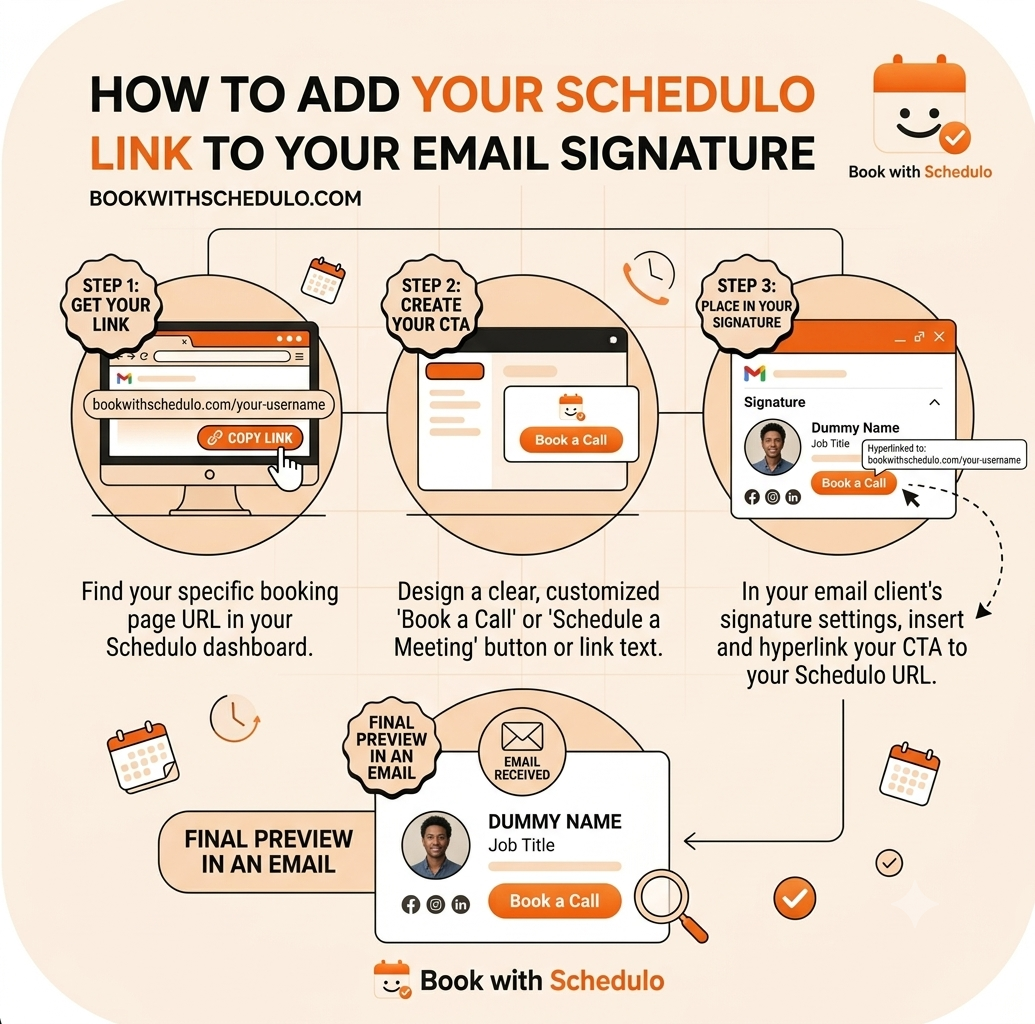
How to add a booking link to your email signature
The exact steps depend on the email service you use, but the setup itself is fairly straightforward.
Open your email settings and look for the section where your signature is saved. Add the text you want people to see, such as Book a meeting, select that text, and use the link option to add your booking page URL.
Save the signature and send yourself a test email. Click the new link and make sure it opens the right booking page before you start using it with clients.