How to Put an Appointment QR Code on a Business Card


How to Put an Appointment QR Code on a Business Card
You have probably had this happen.
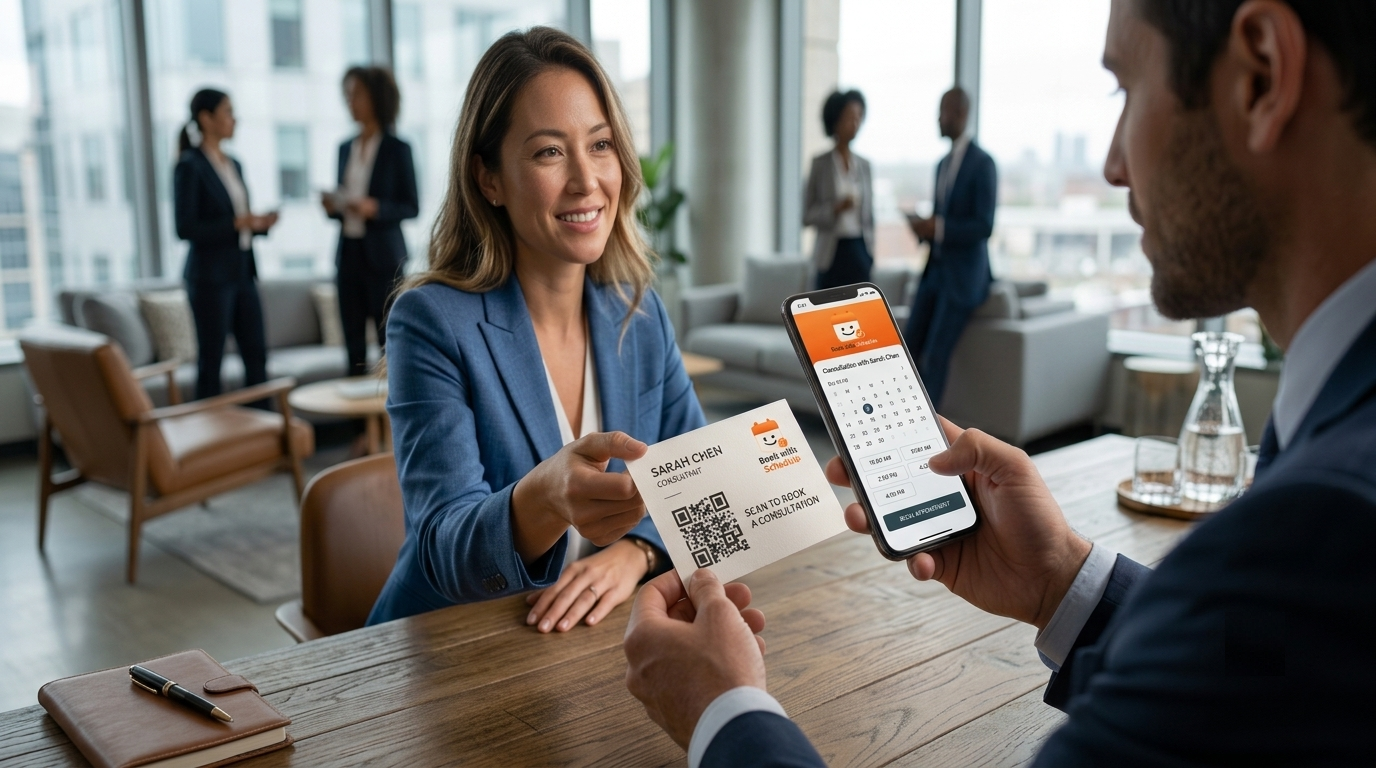
You meet someone, talk for a few minutes, and the conversation turns into work. Maybe they need a consultation. Maybe they want to discuss a project. Maybe they are interested in booking a session.
You exchange business cards.
That usually ends with, “I'll get in touch.”
Sometimes they do.
Sometimes the card sits on a desk for three weeks.
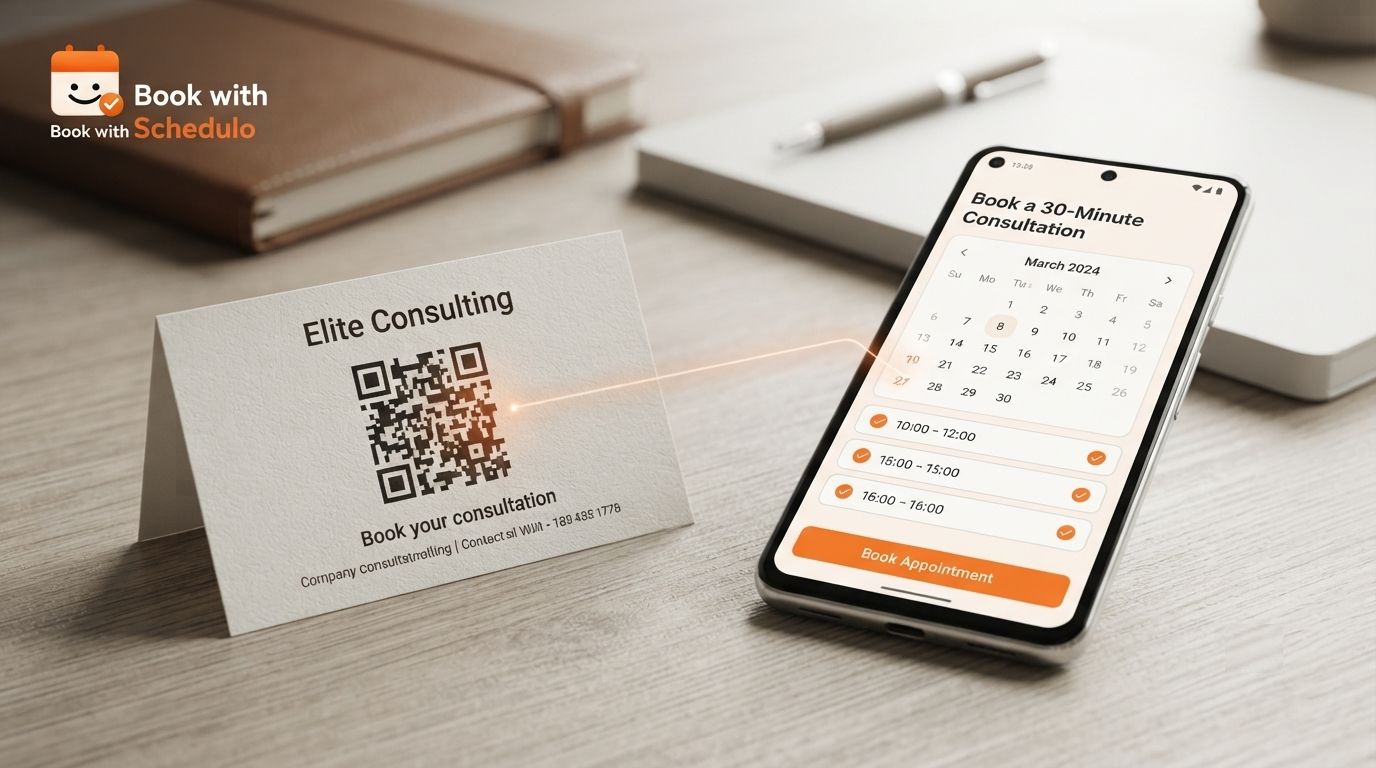
A QR code can make that follow-up a little easier. Instead of asking the person to remember your business and find you again, you can give them a direct route to the appointment you want them to book.
They scan the card.
The booking page opens.
They choose a time.
That is the useful version of an appointment QR code on a business card.
The QR itself is the easy part. The decisions around it — where it goes, what it says, how big it is and what happens after the scan — are what determine whether it is actually useful.
First decide what the card is asking the person to do
This is worth settling before you open your design software.
A QR code can send someone almost anywhere. Your homepage. A contact page. A social profile. A landing page. A booking page.
For a business card that is specifically meant to generate appointments, the booking page is usually the most direct choice.
But even there, you need to decide which appointment.
Suppose you are a consultant and offer an introductory call, a paid consultation and a longer strategy session.
The person standing in front of you probably isn't interested in all three.
Maybe you have just spent five minutes talking about a possible project. In that situation, the introductory call is probably the right next step.
So the card could simply say:
Thinking about a project?
Scan to book a consultation
The QR opens that appointment.
There is no need for the person to enter your website, look around and decide where to go.
Book with Schedulo gives each booking type its own booking link and QR code, which makes this kind of setup possible. You can choose the appointment that belongs on the card instead of creating one general QR destination for everything.
That decision makes the rest of the card much easier to design.
A business card doesn't need to explain everything
This is where QR designs sometimes become unnecessarily complicated.
The card already has a limited amount of space. Your name, company, phone number and email are probably there. Maybe you also have your website and logo.
Then someone adds the QR.
Then someone else wants LinkedIn.
Then Instagram.
Then a tagline.
Before long, the QR has been pushed into a tiny corner because the card is trying to say everything at once.
It doesn't have to.
The QR has one job.
Give someone a short route to booking.
A simple back-of-card layout might be enough:
Book a consultation
[QR code]
bookwithschedulo.com/book/your-name
Your front can continue doing the normal business-card job.
That separation often makes the whole thing look cleaner.
The QR doesn't need to compete with your name or logo.
Where should the QR go?
I would usually give it its own area rather than treating it like another tiny icon.
The back of the business card is an obvious place because it gives you more room.
That doesn't mean the front is wrong.
If your front design is simple and there is a natural place for the QR, it can work there too.
What matters is that the code isn't buried among other information.
Someone should be able to find it without studying the card.
For example, imagine a consultant's card.
On the front:
Priya Mehta
Business Consultant
Email
Phone
Website
On the back:
Need to discuss a project?
Scan to book a consultation
[QR code]
That is immediately understandable.
Compare that with a tiny QR code sitting underneath six social icons.
The second version technically has a QR code.
It just isn't making much of an effort to get used.
How large should it be?
There isn't a magic QR size that will work equally well on every printer and every card.
Paper quality, contrast, printing resolution and the design of the QR all make a difference.
For a standard business card, 25–30 mm square is a reasonable place to start. I would not treat that as an absolute minimum or maximum. It is simply a practical size to test during the design stage.
The important word is test.
Your screen is not the business card.
A QR that looks comfortably large while you are working on your laptop can look much smaller when printed.
Print one.
Hold it the way somebody normally holds a business card.
Scan it with your phone.
If you have to keep moving the phone around to get it to work, don't tell yourself that customers will probably manage.
Make the code larger or simplify what is around it.
It is much cheaper to fix one test card than five hundred finished ones.
The words beside the QR are important
A QR code by itself makes the customer guess.
What am I scanning?
Where will it take me?
Why should I bother?
A short sentence can answer all three.
Scan to book a consultation
is clear.
So is:
Scan to schedule a call
or:
Scan to book your next session
The right version depends on the business and the situation.
What I would avoid is writing something vague just because it is short.
“Scan Me” explains the action.
It doesn't explain the benefit.
The person should know what they are getting before they point the camera at the code.
The homepage is usually one click too far
This is an easy mistake because your homepage is probably the URL you already know by heart.
It is also rarely the most useful destination for someone holding your card.
Imagine you have just finished talking to a potential client about your consulting service.
They scan the code.
Your homepage opens.
Now they have to find the service.
Then they need to find the booking option.
Then they have to work out which appointment they are supposed to choose.
Nothing is technically broken.
There are just several opportunities for them to stop.
A direct booking page removes those decisions.
Book with Schedulo creates a QR code for the individual booking type, so the customer can be sent straight to that appointment rather than being dropped onto a generic homepage.
For a physical card, that difference matters.
The whole reason you added the QR was to shorten the follow-up.
One QR is enough for most business cards
I would start with one.
Most people don't need four choices.
Imagine handing over a card with:
Free consultation [QR]
Paid consultation [QR]
Follow-up call [QR]
Book a demo [QR]
That may technically cover everything.
It also asks the person to figure out which one they should use.
A single QR with one obvious purpose is easier.
There are exceptions.
If you use different cards for different audiences, there is no problem with using different QR codes.
You might have a general business card for new prospects and another printed piece for existing customers. The first can lead to an introductory booking; the second can lead to a follow-up appointment.
Book with Schedulo supports a separate QR for each booking type, so the destination can change depending on what you are handing to the customer.
The thing I would avoid is making one tiny card carry three or four codes just because you have three or four appointment types.
More choices can make the next step less obvious.
Use the QR design you actually receive
You do not need to recreate the QR from scratch in another design tool.
Book with Schedulo provides each booking type with its own QR and lets you download a high-resolution PNG for use in print. The QR also uses the booking type's accent color, so it can fit into the rest of the design without requiring you to modify the underlying code.
That is enough customization for a business card.
I would leave the code alone and spend your design time on the things people actually notice around it.
Is the instruction clear?
Is the QR large enough?
Does it have enough space around it?
Does the card still look good?
Those questions are more important than trying to make the QR itself look unusual.
Test the QR, then test the booking
There are really two tests.
The first is obvious.
Can the phone scan the printed QR?
The second is easier to forget.
What happens once it does?
Print a sample card and scan it.
Check that the correct booking page opens.
Check that the appointment name makes sense.
Look at the available times.
Try making a booking.
Do it from a phone, because that is how the person receiving your card is likely to use it.
You may find that the QR works perfectly but the page behind it needs work.
Maybe the wrong booking type opens.
Maybe the appointment description is confusing.
Maybe the available times don't look right.
Maybe you intended the code to lead to a consultation but accidentally connected it to another event.
Better to find that out before the cards leave the printer.
Let someone else try it without an explanation
This is a surprisingly useful test.
Hand the printed card to somebody who has not seen your setup.
Don't tell them what the QR does.
See whether the card makes sense.
If the person looks at the QR and asks, “What is this for?”, the wording needs work.
If they scan it and immediately know what to do next, that's a good sign.
You know your own business too well to be the only person testing the card.
You already know which appointment is behind the QR.
You know what the booking page looks like.
A new customer knows none of that.
The card has to communicate without you standing beside it.
What should happen after the scan?
There is no reason to make this complicated.
The person scans.
The booking page opens.
They see what the appointment is.
They see the times you have made available.
They pick one.
They finish the booking.
That is the experience you are aiming for.
The Book with Schedulo site says customers can scan a booking QR code and book from their phone without needing an app or a Book with Schedulo account.
That matters more for a business card than it might seem.
You do not know what device the person is using.
You do not know whether they have used scheduling software before.
You don't want the card to create another task immediately after someone scans it.
The booking page still matters
A QR code cannot fix a bad booking experience.
It can only get someone there.
So after testing the scan, pretend you have never seen the page before.
What is this appointment?
How long is it?
What times are available?
Can the customer finish without wondering whether they did something wrong?
Book with Schedulo's purpose is to let clients see the available times and book without having to create an account or install an app.
For a business-card QR, that simplicity matters.
The customer is already doing something slightly unusual by scanning a piece of paper to make an appointment. Everything after that should feel familiar.
What should different businesses put on the card?
The idea changes slightly from business to business.
Consultants
A consultant who meets prospects at events could write:
Let's discuss your project
Scan to book a consultation
That makes sense after a networking conversation.
Freelancers
A freelancer could use:
Have a project in mind?
Scan to schedule a call
The customer isn't being asked to book a service they haven't discussed. They are simply being given the next step.
Coaches
A coach might choose:
Want to get started?
Scan to book an intro session
Salons and personal services
A salon can be much more direct:
Need your next appointment?
Scan to book
Tutors and trainers
Something simple works:
Book your next session
The QR does not need to explain the entire business.
It only needs to make the next action clear.
What if the card is going to existing customers?
Then the destination may be different.
A customer who already knows you doesn't need an introductory call.
They might need a follow-up session.
A review.
Another appointment.
A recurring service.
This is one situation where separate QR codes become useful.
Instead of changing the general business card, you can use a different QR on a client-facing piece of material.
For example, a proposal could include:
Questions before we start? Scan to book a call.
An invoice could include:
Need a follow-up? Scan to schedule.
A printed appointment reminder could point directly to the next type of session.
The same scheduling system can support all of these situations while the printed message changes around it.
The website can use the same booking flow
There is no reason for the QR on your card and the booking button on your website to lead to completely different systems.
They can point to the same booking setup.
Someone who discovers you through Google can use the website.
Someone who receives an email can use your booking link.
Someone who meets you in person can scan the card.
The entry point changes.
The booking process doesn't have to.
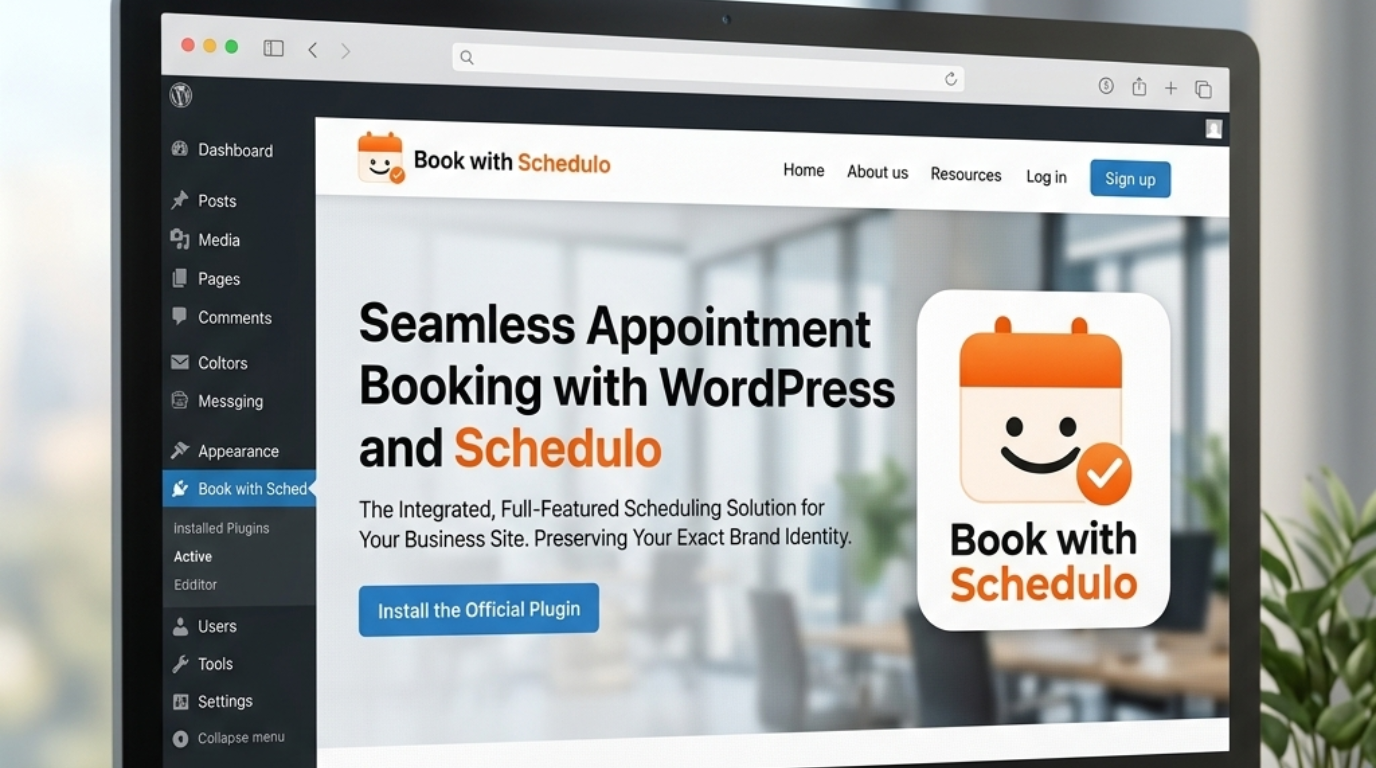
For a WordPress site, Book with Schedulo also provides a plugin that lets you add a booking button, popup, inline booking experience or floating button. See our guide on how to add an appointment booking button to a WordPress website.
That creates a useful combination:
website visitors → booking button
people you meet → business-card QR
Both can lead to the same appointment.
Don't print the card until you've done one complete test
This is the part I would put on the checklist before approving the design.
Print one.
Scan it.
Open the booking page.
Check the appointment.
Check the available times.
Make a test booking.
Try it again from another phone if possible.
Only then order the full batch.
It sounds like a lot for a small printed card.
It isn't.
Once five hundred cards are printed, discovering that the QR is hard to scan or points to the wrong appointment becomes a much more expensive problem.
And don't test only from a perfectly lit desk.
Try the card under normal indoor lighting.
Hold it naturally.
Scan it from a sensible distance.
The real customer is not going to treat the card like a laboratory sample.
Neither should your test.
The QR can stay useful for a long time
This is one of the better things about connecting the code to a live booking page.
The design can stay the same even when the calendar changes.
Your card doesn't need to know that you stopped taking Friday afternoon appointments.
It doesn't need to know that you added Monday mornings.
The person simply scans and sees what is available now.
That is what makes a printed QR more practical than a printed booking instruction that depends on a static schedule.
A small square can remove a surprisingly large amount of follow-up
The business card itself isn't the clever part.
The QR isn't even particularly complicated.
What changes is what the person can do with the card.
Without it, the card says:
Here's how to find me.
With a useful appointment QR, it can also say:
Here's how to book me.
That is a different kind of handoff.
You don't have to rely entirely on somebody remembering to visit your website later. They can act while the conversation is still fresh.
And the person receiving the card doesn't have to work out where to start.
They scan.
The right appointment opens.
They choose a time.
That is the whole reason to put an appointment QR code on a business card.
Create a booking page and QR code with Book with Schedulo.